
How to Organize Photos into Folders — Fast
A practical workflow for turning a folder of hundreds or thousands of unsorted photos into a clean structure — in one sitting, using nothing but your arrow keys.
Why sorting photos takes so long — and how to fix it
Most people sort photos the way their operating system suggests: open a folder, double-click an image, look at it, close it, right-click, Move to…, pick a folder, confirm. That's six or seven actions per photo. At 800 photos from a holiday, that is well over an hour of pure clicking, which is exactly why the folder never gets sorted.
The fix is to reduce every decision to one keystroke. You look at a photo, you press one key, the next photo appears. No dialogs, no confirmations, no mouse. With this approach, 800 photos take roughly 15 minutes — the time it takes to actually look at them, and not a second more.
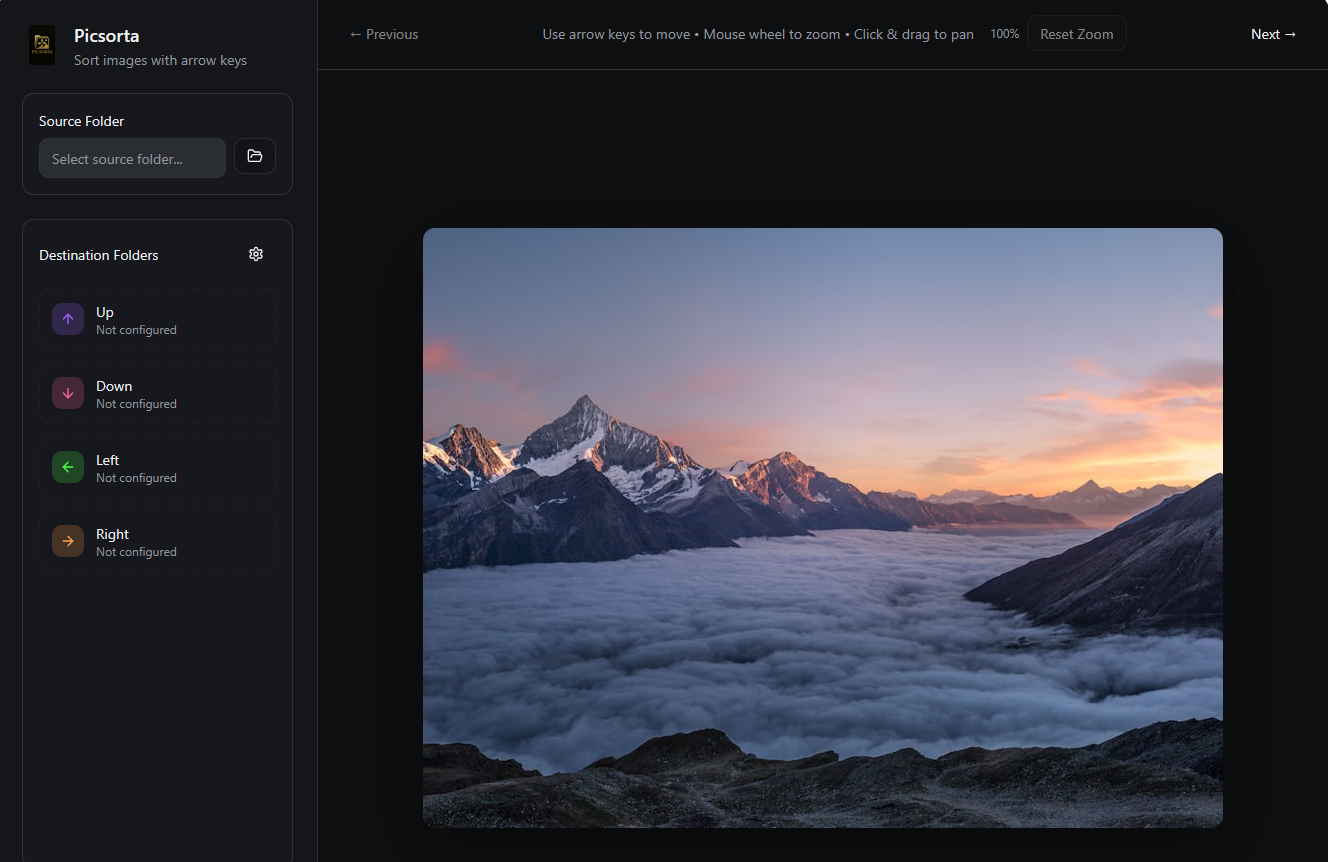
Picsorta is a free, browser-based tool built around this idea. It maps the four arrow keys to four folders of your choice and moves the original file the moment you press a key. Nothing is uploaded; the files never leave your computer.
The workflow in five steps
Plan your folder structure before you start
The most common mistake is to invent categories while sorting. Decide on up to four destinations first and create the folders next to your source folder. A structure that works for almost any batch:
You don't have to use all four keys. Two folders (Keep / Trash) are perfectly fine for a first, rough pass.
Open Picsorta and pick the source folder
Open picsorta.com/picsorta-app.html in Chrome, Edge or Brave (the tool relies on the File System Access API, which Safari and Firefox don't offer yet). Click Select source folder and choose the folder that holds the unsorted photos. Your browser asks once for permission to read and write in that folder — this permission is limited to exactly that folder and ends when you close the tab.
Picsorta scans the folder for JPG, PNG, WebP, GIF, BMP, TIFF, AVIF and SVG files; anything else is ignored. The first photo appears immediately.
Map the arrow keys to your folders
In the sidebar, click Up, Down, Left and Right one after another and select the matching destination folder for each. The folder name is shown next to the key, together with a counter that tracks how many images went there. You can change any mapping at any time during the session.
Sort in one pass — don't stop to deliberate
Now the actual work: look at the photo, press an arrow key. The file is moved instantly and the next one loads. A few habits that keep the pace up:
- Zoom only when it matters. Roll the mouse wheel to zoom toward the cursor and check focus or faces; Reset Zoom brings you back. Don't inspect every photo — most decisions are obvious at a glance.
- When in doubt, use Review. Hesitating costs more than a second pass. Anything that makes you pause goes ← and gets decided later.
- Mistakes are free. Ctrl+Z (or Cmd+Z) moves the last image back and shows it again. The whole session's history is available.
- Work in bursts. 200–300 photos, then a short break. Picsorta remembers your mappings while the tab is open.
Clean up, then run a second pass on Review
When the counter reaches the end, empty the Trash folder in your file manager. Then point Picsorta at the Review folder as the new source, map the keys to Best, Archive and Trash, and go through it once more. Because you've already seen every photo, this pass is fast — and the Review folder ends up empty.
Repeat the same structure for the next batch. Consistency is what makes a photo library usable months later.
Folder structures that scale
The four-key layout above is for one batch. For a whole library, combine it with a simple top level that never needs re-sorting:
- By date:
2026/2026-08 Italy/Best,…/Archive. Cameras already store the date, so this is the structure that needs the least thought. - By event or client:
Clients/Miller Wedding/Selects,…/Outtakes. Ideal for photographers who deliver a subset. - By subject:
Family,Travel,Work,Receipts & screenshots. Works well for phone camera rolls that mix everything.
Whatever you choose: sort into it with the arrow keys, not by dragging. The structure only survives if filing a photo costs nothing.
Frequently asked
Does this change my photos?
No. Picsorta moves the original file from one folder to another on your disk — byte for byte identical, no re-encoding, no copies. It is the same operation as dragging the file in your file explorer, only faster.
What about RAW files?
Browsers can't display RAW formats. The usual approach is to sort the camera's JPEG previews (or exported JPEGs), then mirror the folder structure onto the RAW files with a filename-based script or your RAW converter's sync feature.
Can I sort photos on my phone?
Not with Picsorta — it needs a keyboard and the File System Access API, which mobile browsers don't provide. Copy the photos to a computer first.
Is there a limit on folder size?
No hard limit. Images are loaded one at a time, so 10,000 files in a folder are fine. Very large TIFF or AVIF files simply take a moment longer to appear.
Ready to sort your first folder?
Open Picsorta, pick a folder and press an arrow key. It's free, and your photos stay on your computer.
Open Picsorta →