Picsorta lets you fly through large photo sets using the arrow keys. Assign destination folders, zoom & pan to inspect details, and watch your library snap into order — all in your browser.
Works locally in your browser. Your images never leave your device.
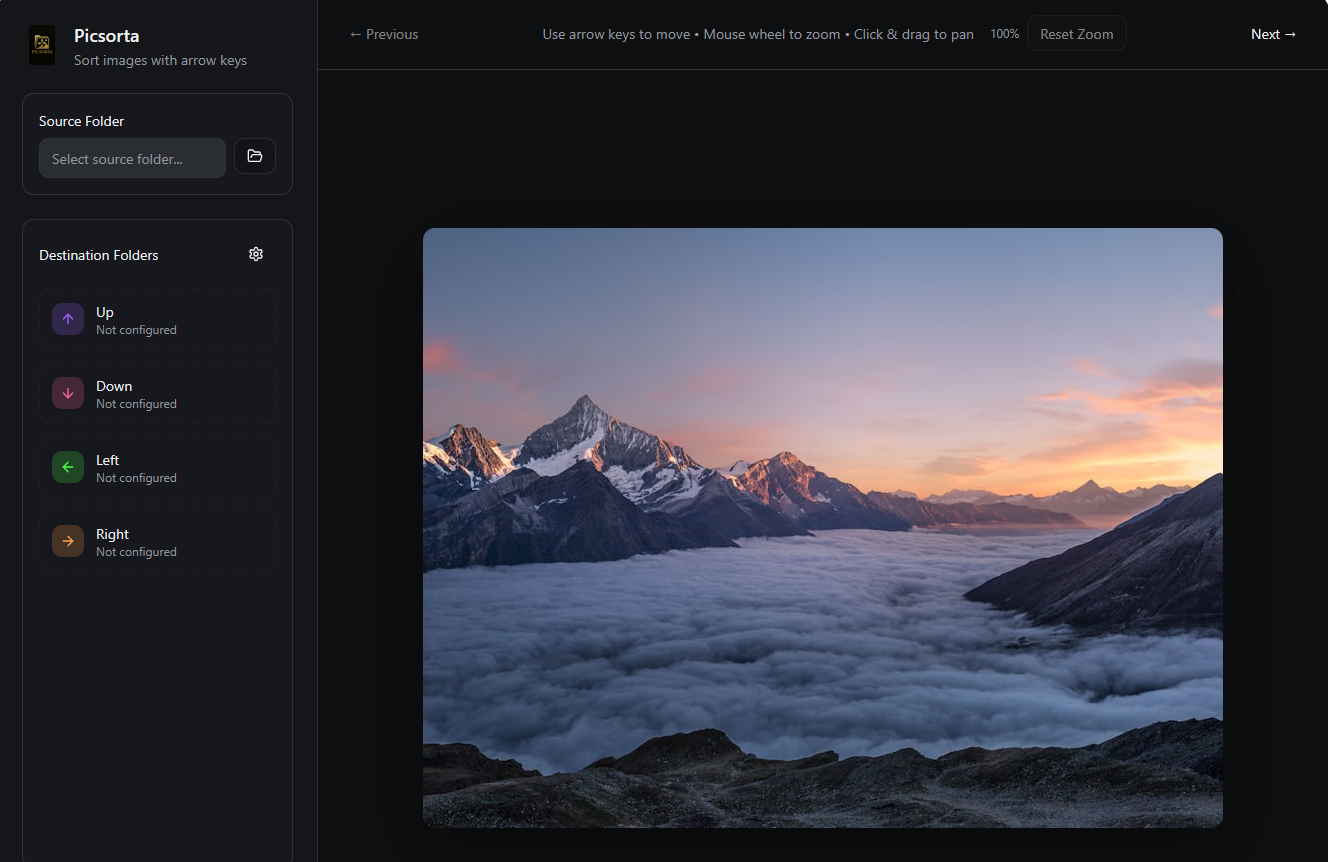
If you've ever come back from a trip, a photoshoot, or a busy week and found yourself staring at a folder with hundreds — or thousands — of unsorted images, you know the feeling. Sorting photos is one of those tasks that everyone puts off because traditional methods are painfully slow. Dragging and dropping files one by one, opening each image in a viewer, right-clicking to move... it all adds up to hours of tedious work.
Picsorta was built to solve exactly this problem. It's a free, browser-based tool that lets you sort images into up to four destination folders using nothing but your keyboard's arrow keys. Each key is mapped to a folder of your choice — press an arrow, and the current image is instantly moved to the corresponding folder. The next image loads automatically, and you keep going. No dialogs, no confirmation prompts, no wasted clicks.
What makes Picsorta different from other image organizers is its focus on speed and simplicity. There's no learning curve, no complicated tagging systems, and no database to manage. You select a source folder, assign your destinations, and start sorting. Most users find they can process several hundred images in just 10 to 15 minutes — a task that would take over an hour using traditional file management.
Because Picsorta runs entirely in your browser using the File System Access API, your images never leave your computer. There's no upload step, no cloud storage, and no server processing. The tool reads images directly from your local disk, displays them on screen, and moves them to local destination folders. This makes Picsorta not only fast, but also completely private and secure.
Every detail is built to keep you in the zone — from keyboard-first interaction to instant visual feedback.
Map ↑ ↓ ← → to destination folders and file images with a single tap. No menus, no friction.
Mouse wheel to zoom toward cursor, click & drag to pan. Inspect fine detail without leaving your flow.
Runs in Chrome, Edge, or Brave — no installation required. Uses the File System Access API for direct folder access.
Made a mistake? Press Ctrl+Z to instantly move the image back to its original folder.
Picsorta moves original files between folders. Your pixels stay untouched — no compression, no copies.
Everything happens locally in your browser. No server uploads, no cloud, no tracking of your images.
No accounts, no downloads, no setup wizards. Just open and sort.
Select the folder that contains the photos you want to sort. Picsorta scans it for all common image formats including JPG, PNG, WebP, GIF, TIFF, AVIF, and more.
Map each arrow key to a target folder — e.g. ↑ "Best", ↓ "Delete", ← "Maybe", → "Family". You can change these at any time during your session.
Press an arrow key to instantly move the current image. Zoom in with the mouse wheel to check details, then keep going. Flow state unlocked.
→ /Best→ /Trash→ /Review→ /FamilyWhether you're a professional photographer or organizing family memories — Picsorta helps anyone dealing with large image collections.
After a shoot, you might have hundreds or thousands of photos to review. Picsorta lets you quickly separate the keepers from the rejects. Map "Up" to your portfolio folder, "Down" to delete, and fly through your images at a pace that matches your creative instinct.
Years of family photos piled up on your hard drive? Sort vacation shots by destination, separate the blurry ones, or organize by family member. Picsorta makes it easy to bring order to your personal photo archive without tedious drag-and-drop.
Agents and e-commerce sellers often deal with hundreds of property or product images per week. Quickly sort by listing, category, or quality tier. The zoom feature helps inspect details like scratches, room features, or label text up close.
Building a mood board or curating visual references? Use Picsorta to sort downloaded images, screenshots, and inspiration into themed folders. The keyboard-driven workflow keeps your creative flow uninterrupted.
Before opening Picsorta, spend a minute thinking about how you want to categorize your images. Create destination folders on your computer that match your sorting goals. For a typical photo review session, you might create four folders: "Keep" for the best shots, "Delete" for images you don't want, "Edit" for photos that need post-processing, and "Archive" for decent shots you want to keep but don't plan to use immediately. Having a clear system upfront makes the actual sorting process much faster because you won't have to pause and think about where each image should go.
When dealing with large collections of several hundred or even thousands of images, trying to make perfect sorting decisions on every single photo in one pass is exhausting and slow. A more efficient approach is to sort in two passes. In the first pass, make quick, instinctive decisions: obvious keepers go up, obvious rejects go down, and anything you're unsure about goes left into a "maybe" pile. Don't overthink it — the goal is speed. In the second pass, review only the "maybe" pile with more care. This two-pass method typically cuts total sorting time by 30 to 40 percent because you spend your mental energy only on the images that actually require careful consideration.
Sometimes you need to see more detail before deciding whether to keep or discard a photo. Picsorta's zoom feature lets you inspect any part of an image without interrupting your sorting flow. Simply scroll your mouse wheel to zoom in — the zoom is cursor-relative, meaning it centers on wherever your mouse is pointing. This is particularly useful for checking whether a portrait is in focus (zoom into the eyes), whether a landscape has sensor spots, or whether a product photo shows unwanted reflections. Click and drag to pan around the zoomed image, and double-click anywhere to reset the view and return to the full image.
Beyond the four arrow keys, Picsorta supports several additional keyboard shortcuts that can speed up your workflow even further. Here are all available shortcuts:
When you first select a folder in Picsorta, your browser will show a permission dialog asking whether you want to grant read and write access to that directory. This is a built-in security feature of the File System Access API — it ensures that web applications can only access folders you explicitly approve. You'll need to grant this permission separately for your source folder and for each destination folder. The permission remains active for the duration of your browser session. If you close the tab and reopen Picsorta later, you'll need to re-select your folders, which is by design to keep your file system secure.
Picsorta is designed to handle folders with hundreds or even thousands of images without slowing down. The images are loaded one at a time, so the number of files in your source folder doesn't significantly affect performance. The main factor that influences loading speed is the file size of individual images — very large RAW files or high-resolution TIFFs may take a moment longer to display than compressed JPEGs. For the fastest experience with very large collections, consider sorting JPEGs or WebP files, which load almost instantly. You can always keep the original RAW files organized in a parallel folder structure.
If you're using Picsorta as part of a professional photography workflow, here are some specific recommendations. After importing images from your camera, create a working copy folder with JPEG exports from your RAW converter. Use Picsorta to sort through these JPEGs quickly, then apply the same folder structure to your RAW originals. Many photographers use a rating-based approach: "Up" for 5-star portfolio candidates, "Right" for 3-star good shots, "Left" for 2-star images that might be useful, and "Down" for obvious rejects. This gives you a pre-sorted library that you can then import into Lightroom, Capture One, or your preferred editing software with ratings already applied.
Picsorta supports all common image formats that modern browsers can display. This includes JPEG, PNG, GIF, WebP, BMP, TIFF, SVG, AVIF, and ICO files. The tool automatically filters the selected source folder to show only recognized image files, so you don't need to worry about non-image files being mixed in. File extensions are matched case-insensitively, so both .JPG and .jpg files will be detected correctly.
Open Picsorta in your browser and start organizing your photos right now. It's free — no sign-up needed.
Open PicsortaWorks in Chrome, Edge & Brave · No installation needed